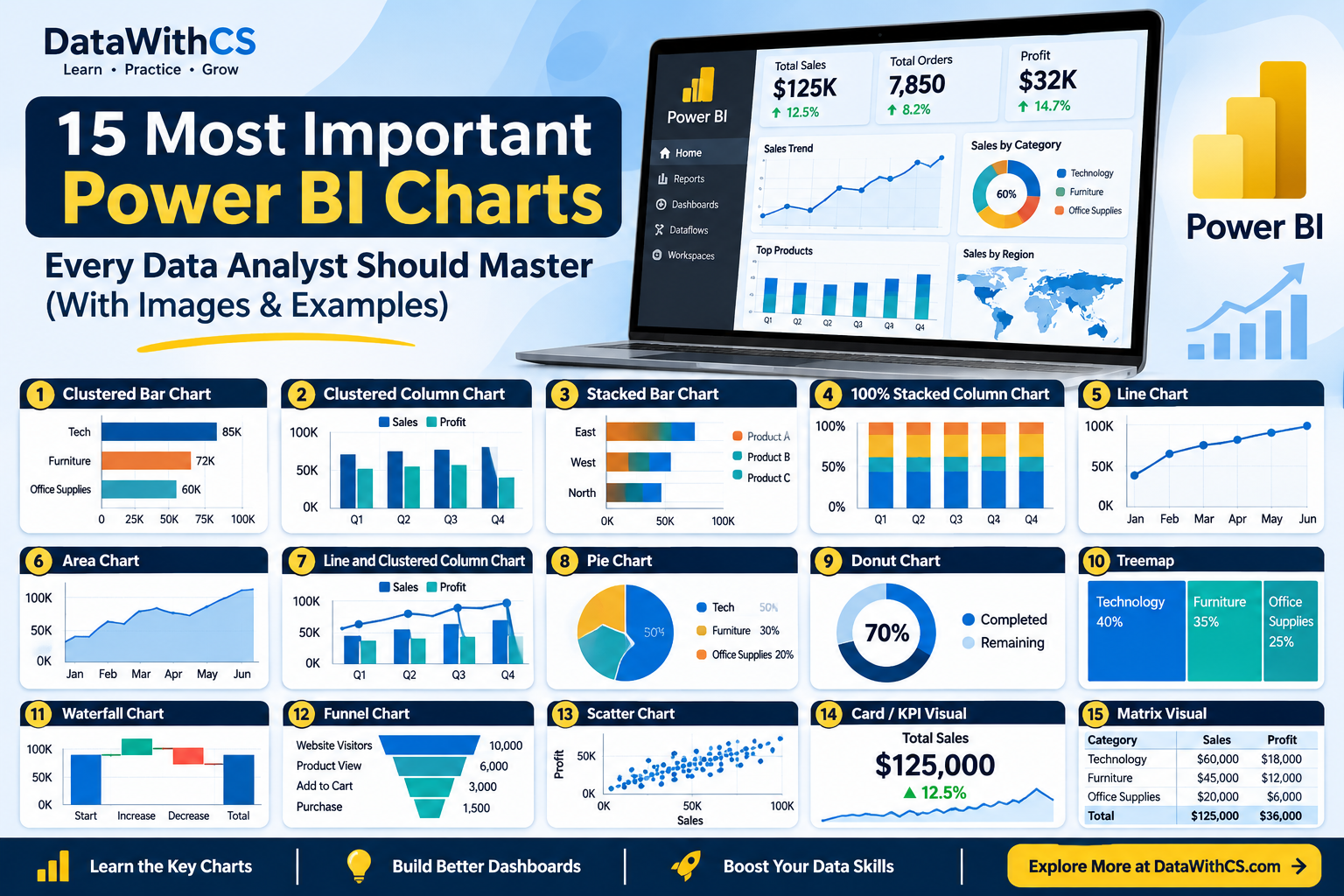
15 Most Important Power BI Charts Every Data Analyst Should Master
Introduction: Why These Power BI Charts Matter
Power BI offers dozens of visuals, but professional dashboards rely on a small core set. If you are following a Power BI tutorial for beginners or preparing for a Data Analyst interview, learning these important Power BI charts first will cover most real reporting work. This guide to Power BI charts explained focuses on 15 native visuals: what each one is, when to use it, and the business question it answers. Each chart includes an image built on realistic sample data so you can recognize it instantly. Good data visualization in Power BI starts with picking the right chart for the question, not the prettiest one.
Comparison Charts in Power BI
1. Clustered Bar Chart
1. Chart Image
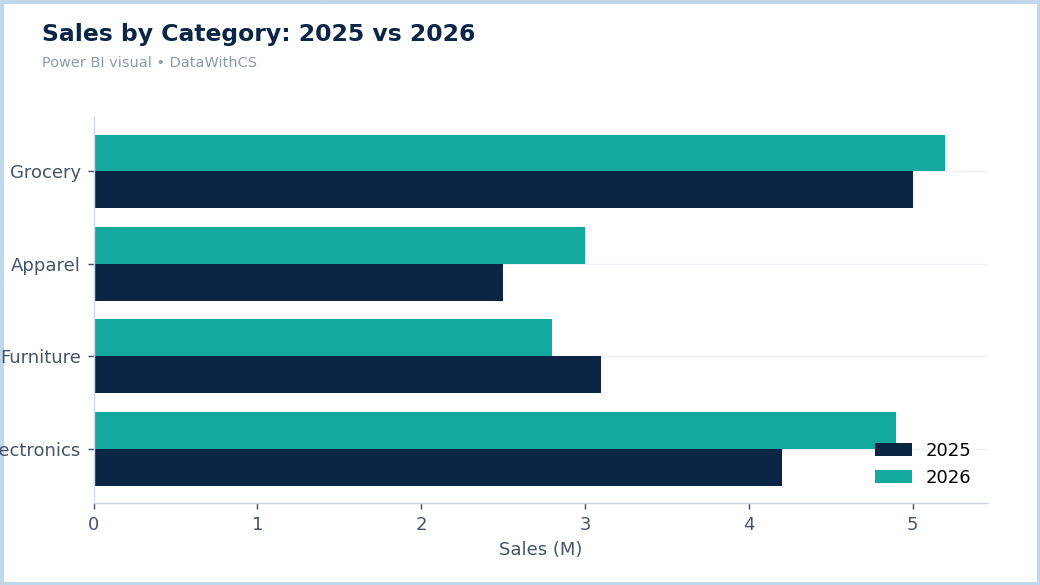
2. What Is This Chart? A clustered bar chart shows horizontal bars grouped side by side so you can compare values across categories, and across a second field such as year. Category names run down the Y-axis and bar length shows the value.
3. When Should You Use It? Use it to compare categories with long names, to rank items (sorted descending), or to compare two or three measures per category. Example: 2025 vs 2026 sales across product categories to see which grew and which fell.
2. Clustered Column Chart
1. Chart Image
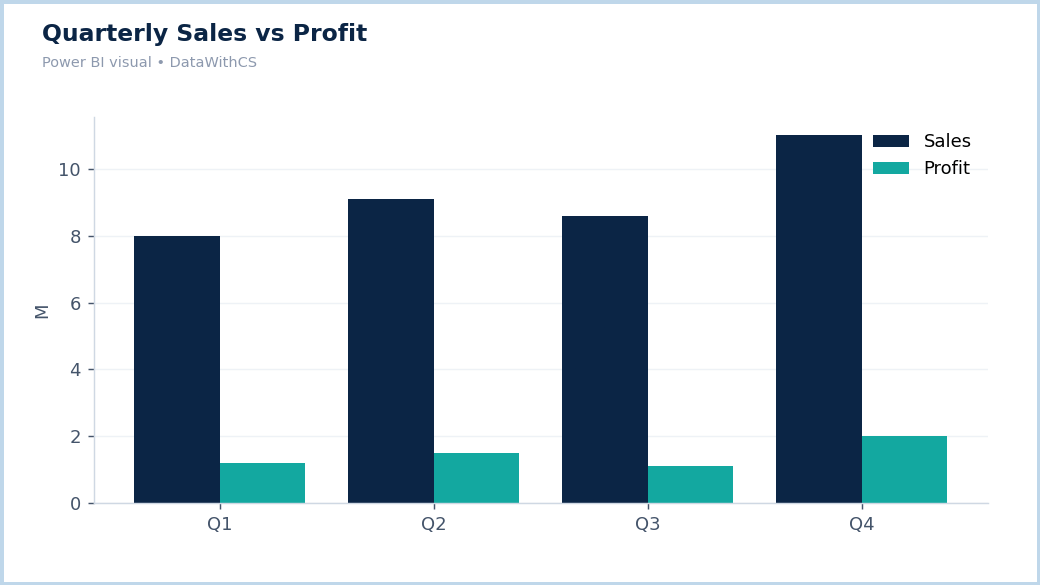
2. What Is This Chart? The same idea as a clustered bar, but with vertical columns. Categories sit on the X-axis and column height shows the value, with a legend field creating the clusters.
3. When Should You Use It? Use it for short category labels and for comparing a few time periods, such as quarterly sales vs profit. If you have many periods, a line chart is usually clearer.
3. Stacked Bar Chart
1. Chart Image
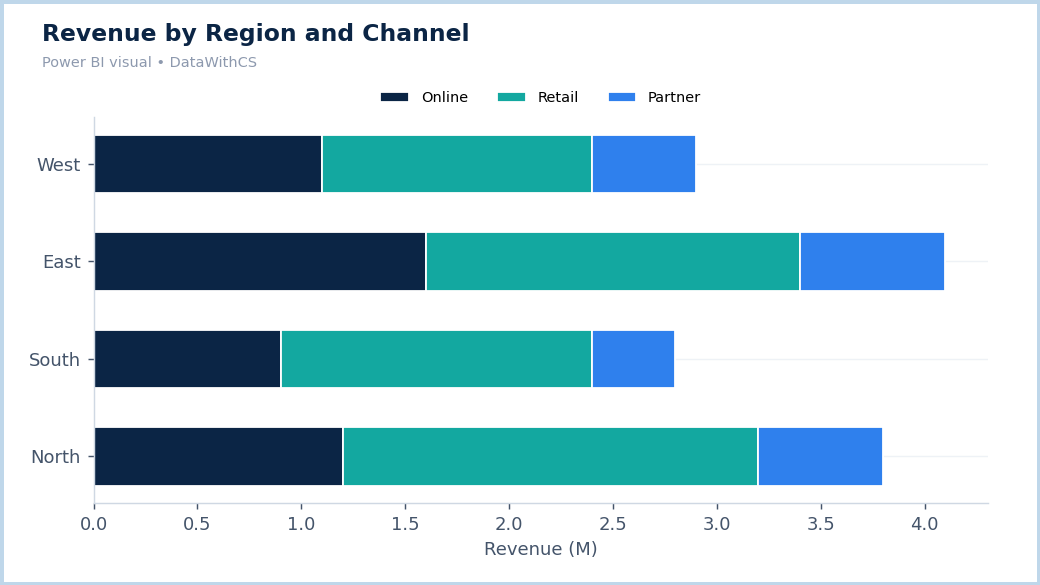
2. What Is This Chart? A stacked bar splits each horizontal bar into colored segments that add up to the total. It answers two questions at once: how big is the total, and what is it made of.
3. When Should You Use It? Use it for composition by category, such as regional revenue split into Online, Retail, and Partner. Keep segments to four or five, because only the first segment shares a common baseline and is easy to compare.
4. 100% Stacked Column Chart
1. Chart Image
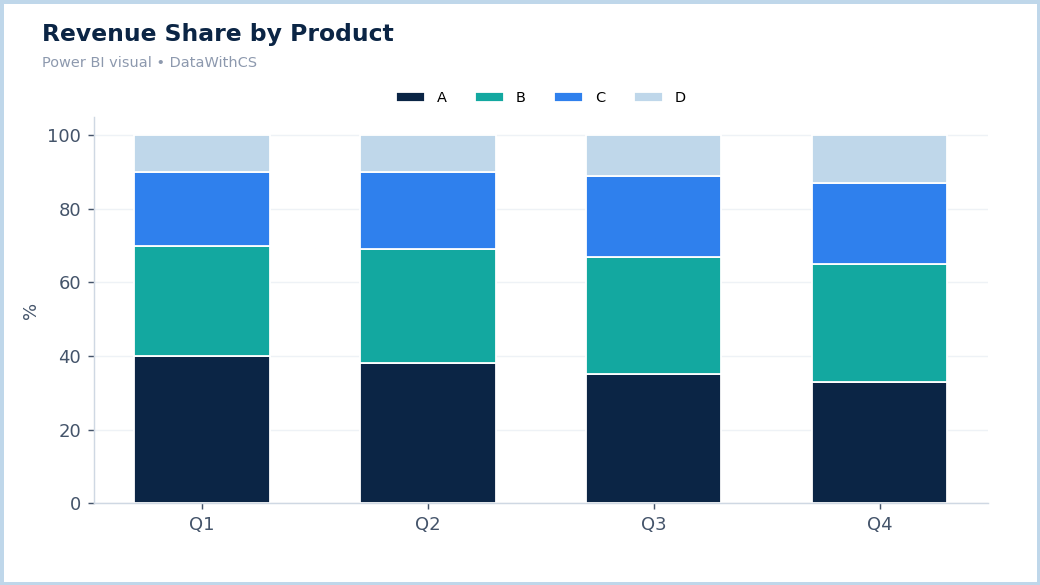
2. What Is This Chart? Columns are scaled to 100% so each segment shows its share of the total, regardless of absolute size.
3. When Should You Use It? Use it to track how a mix changes over time, such as revenue share by product across four quarters. Remember that it hides totals, so a shrinking share does not always mean shrinking sales.
Trend Analysis Charts in Power BI
5. Line Chart
1. Chart Image
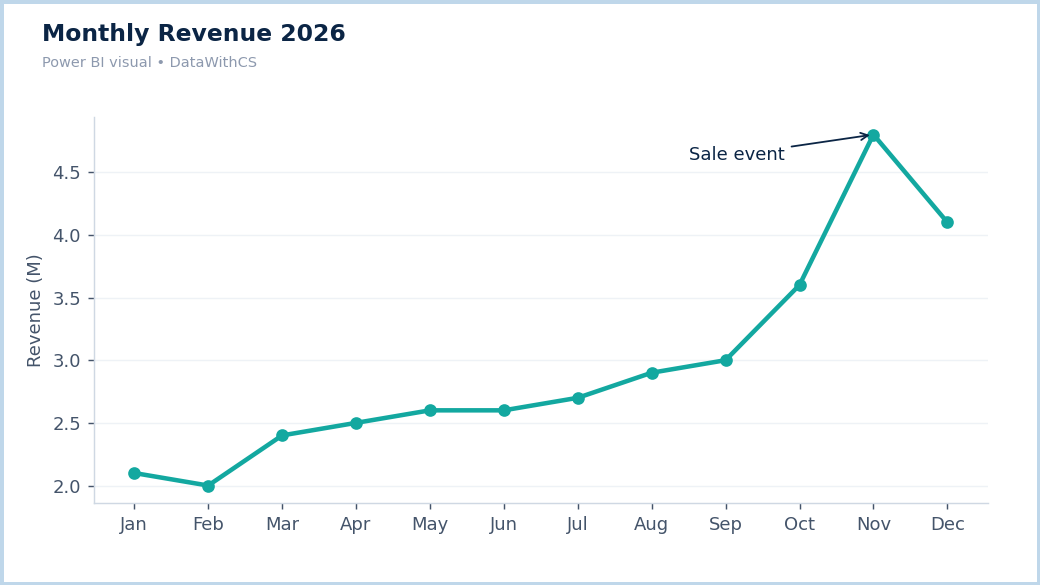
2. What Is This Chart? A line chart connects data points over time to show direction, seasonality, spikes, and dips. The X-axis is usually a date and the Y-axis is the measure.
3. When Should You Use It? Use it for any continuous trend: monthly revenue, daily orders, website traffic. In the Analytics pane you can add trend lines, forecasts, and anomaly detection.
6. Area Chart
1. Chart Image
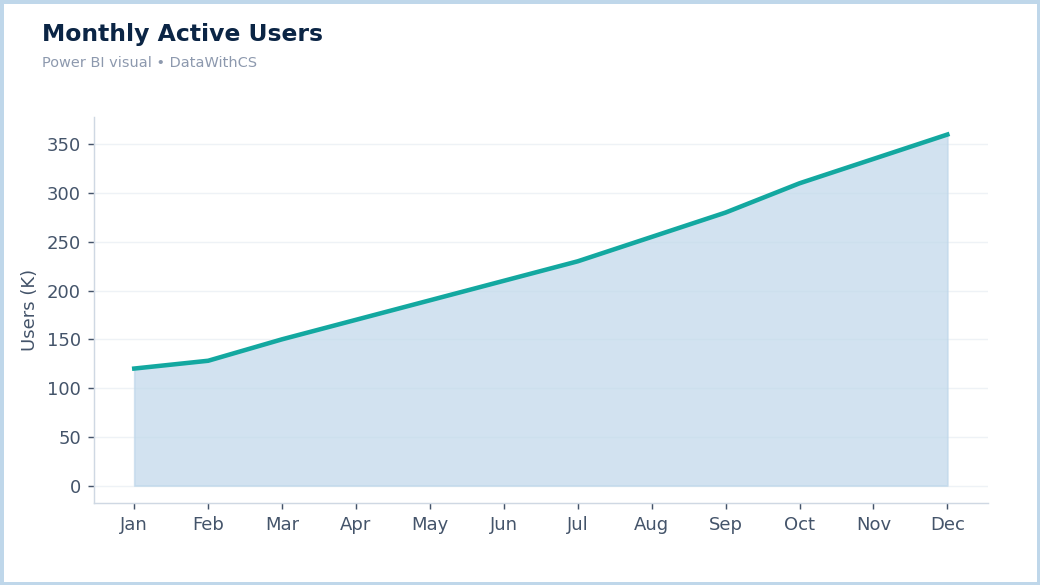
2. What Is This Chart? An area chart is a line chart with the space under the line filled, which emphasizes volume and growth.
3. When Should You Use It? Use it for a single measure where magnitude matters, such as monthly active users. Avoid overlapping several unstacked areas, which hide one another.
7. Line and Clustered Column Chart (Combo Chart)
1. Chart Image
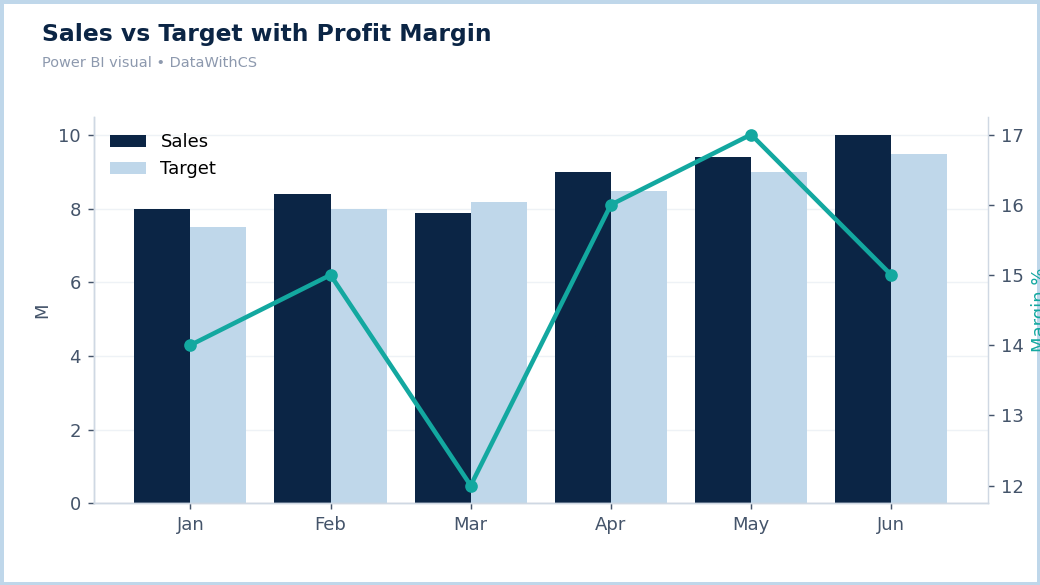
2. What Is This Chart? A combo chart draws clustered columns and a line on the same X-axis, with the line on a secondary Y-axis. It lets you show measures with different units together.
3. When Should You Use It? Use it for revenue or sales (columns) alongside a rate such as profit margin or conversion (line). Always label both axes so readers do not misread the scale.
Part-to-Whole Charts in Power BI
8. Pie Chart
1. Chart Image
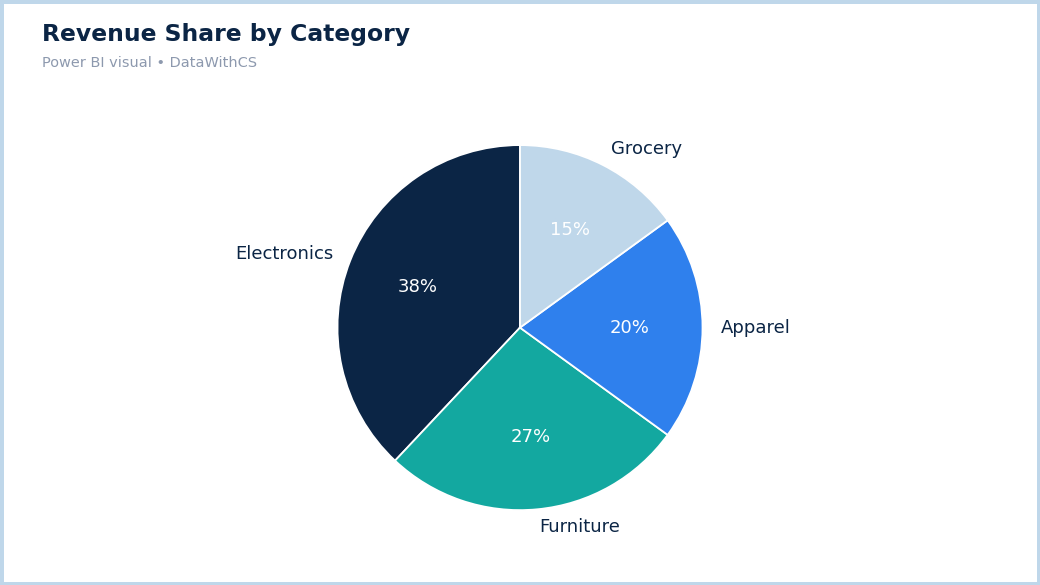
2. What Is This Chart? A pie chart divides a circle into slices, each representing a share of the total.
3. When Should You Use It? Use it only when you have about five or fewer categories that sum to a meaningful whole, such as revenue share by category. For more categories or close values, use a bar chart.
9. Donut Chart
1. Chart Image
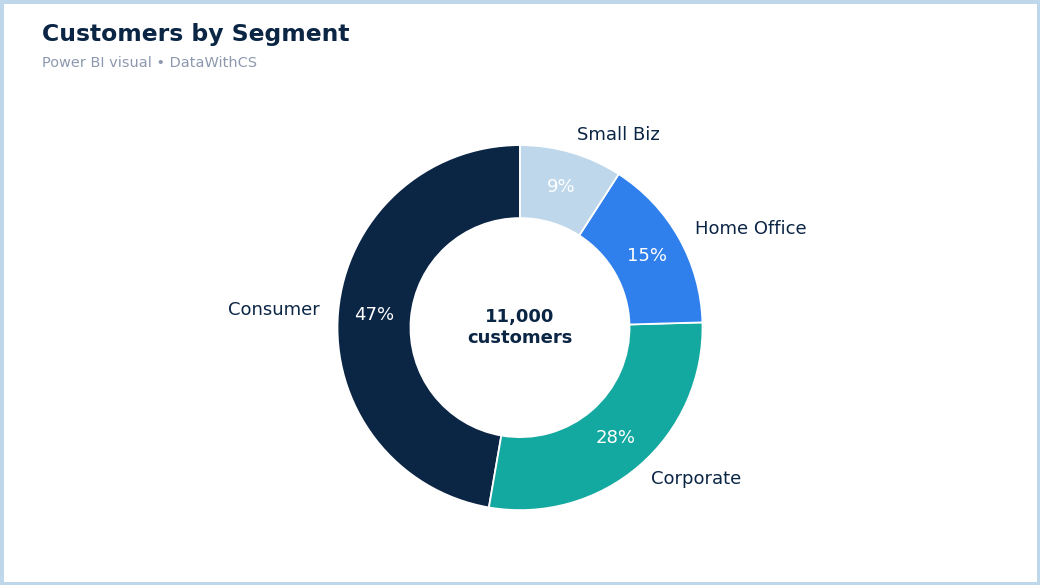
2. What Is This Chart? A donut chart is a pie chart with a hollow center, which can hold a headline number such as total customers.
3. When Should You Use It? Use it in the same situations as a pie chart, especially when a total in the center adds context, such as customers by segment.
10. Treemap
1. Chart Image
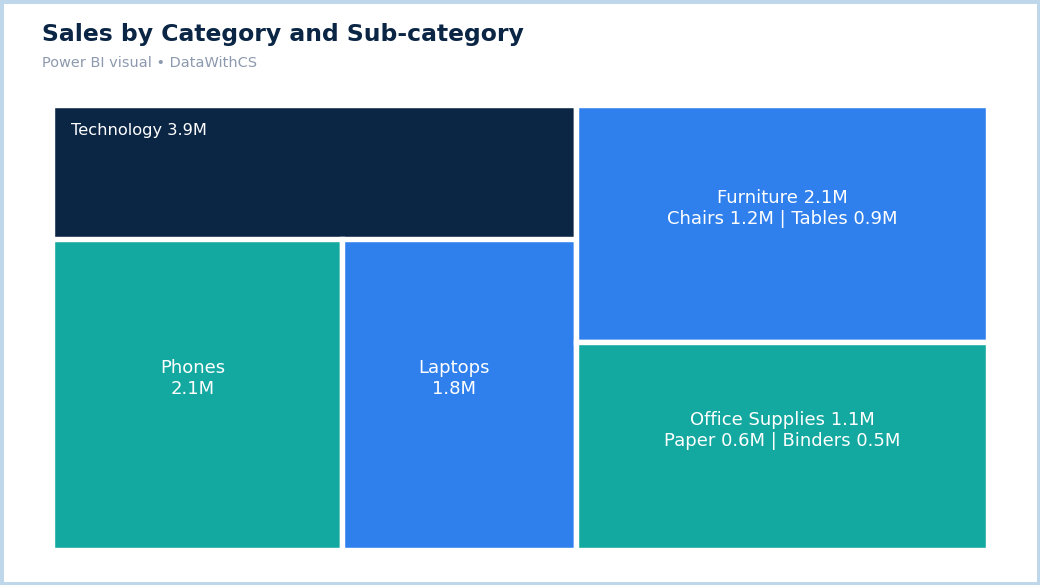
2. What Is This Chart? A treemap shows nested rectangles sized by value, with optional grouping by hierarchy such as category and sub-category.
3. When Should You Use It? Use it when you have many parts of a whole, or a hierarchy, and limited space. It quickly shows the biggest contributors. It does not work with negative values.
Business Analysis Charts in Power BI
11. Waterfall Chart
1. Chart Image
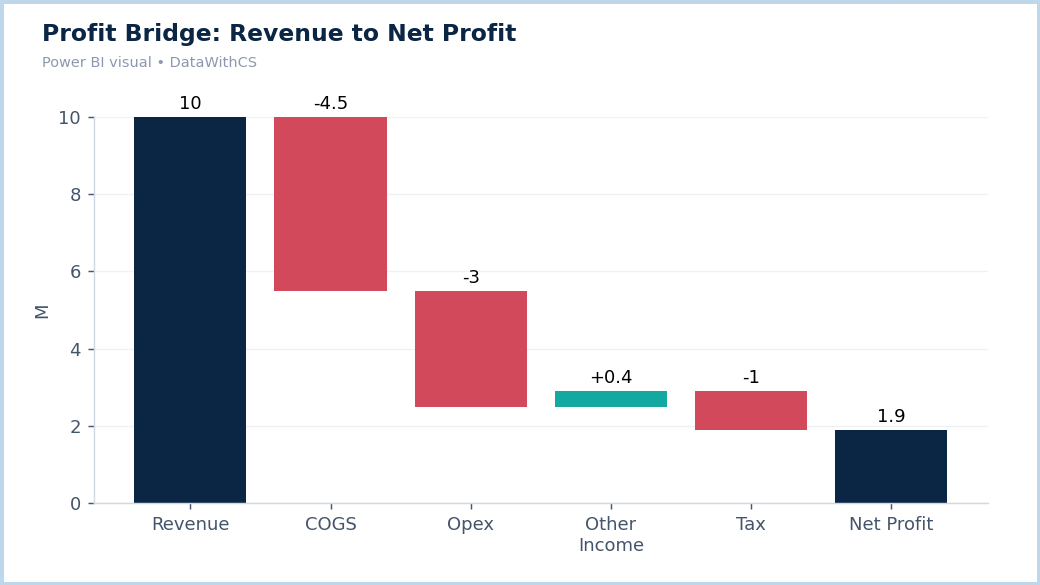
2. What Is This Chart? A waterfall chart shows how a starting value rises or falls through a series of steps to reach a final value. Increases, decreases, and totals get different colors.
3. When Should You Use It? Use it for profit bridges (revenue to net profit), budget variance, and any "what drove the change" question in finance reports.
12. Funnel Chart
1. Chart Image
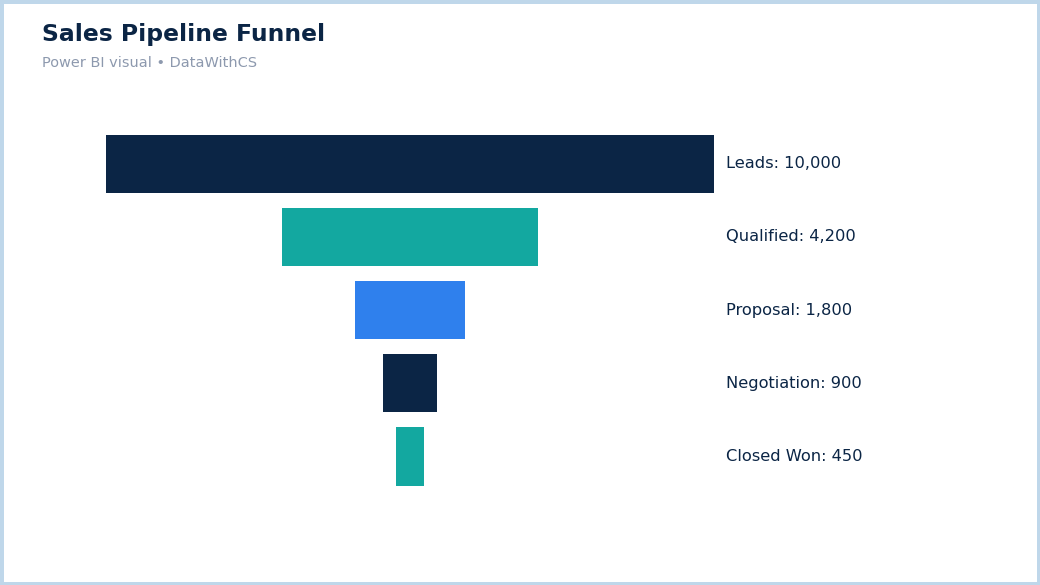
2. What Is This Chart? A funnel chart shows bars that narrow stage by stage, revealing drop-off in a process.
3. When Should You Use It? Use it for sales pipelines, hiring pipelines, and checkout flows with ordered stages. The stage with the biggest drop is where the process leaks.
13. Scatter Chart
1. Chart Image
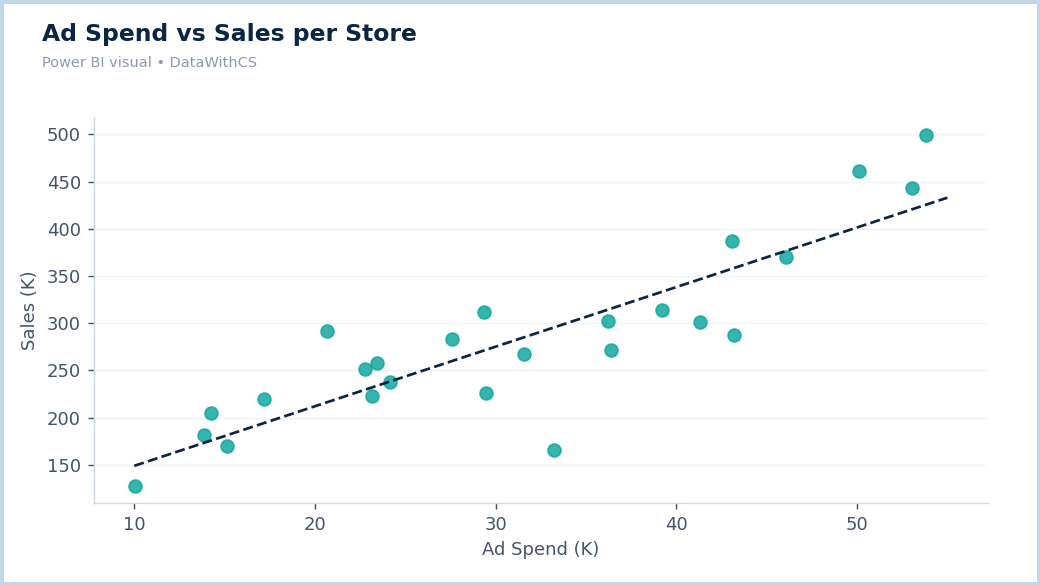
2. What Is This Chart? A scatter chart plots each item as a dot positioned by two numeric measures. Adding a Size field turns it into a bubble chart.
3. When Should You Use It? Use it to explore relationships, such as ad spend vs sales per store, and to spot clusters and outliers. Correlation does not prove causation.
Performance and Reporting Visuals in Power BI
14. Card / KPI Visual
1. Chart Image
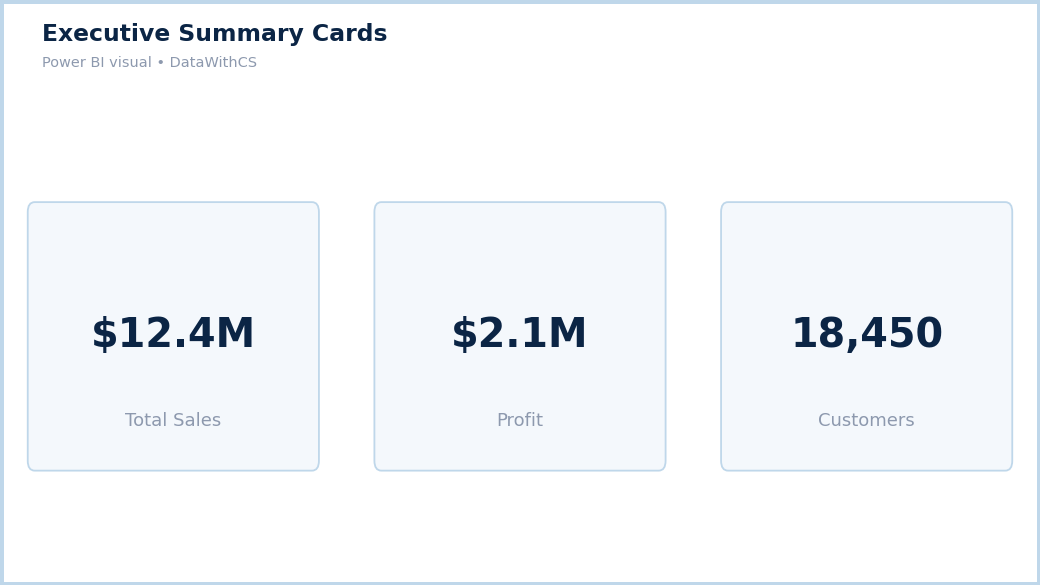
2. What Is This Chart? A card displays one headline number such as total sales. A KPI visual adds a target, a status color, and an optional trend. Newer Power BI versions also include a redesigned "New card" visual.
3. When Should You Use It? Place cards at the top of a dashboard for headline metrics. Use a KPI visual when you need to show performance against a target, such as sales vs goal.
15. Matrix Visual
1. Chart Image
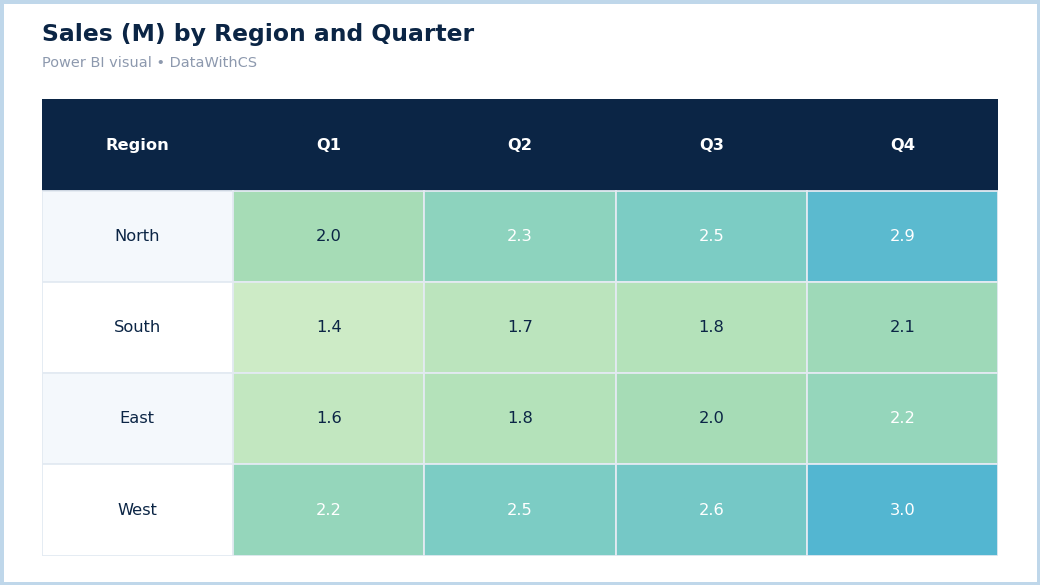
2. What Is This Chart? A matrix is a pivot-table-style visual with row and column hierarchies, subtotals, and drill-down. Conditional formatting turns it into a heat-style view.
3. When Should You Use It? Use it to summarize numbers by two or more dimensions, such as sales by region and quarter, when readers need exact values.
How to Choose the Right Power BI Chart
- Compare categories: clustered bar or column
- Total plus composition: stacked bar
- Mix over time: 100% stacked column
- Trend over time: line chart; area chart for volume
- Value and rate together: combo chart
- Few parts of a whole: pie or donut; many parts: treemap
- What caused the change: waterfall
- Where do we lose people: funnel
- Are two measures related: scatter
- Headline number or target: card or KPI
- Exact values by two dimensions: matrix
Differences Between Similar Power BI Charts
Bar Chart vs Column Chart
Bars are horizontal and suit long labels and rankings. Columns are vertical and suit short labels and time periods.
Pie Chart vs Donut Chart
Both show shares of a whole. A donut has a hollow center for a headline number; neither suits many categories.
Line Chart vs Area Chart
Lines emphasize trend and compare multiple series well. Areas emphasize volume, best with a single series or a stacked set.
Stacked Bar Chart vs 100% Stacked Column Chart
Stacked bars show totals and composition. A 100% stacked column shows only proportions, hiding totals.
Card vs KPI Visual
A card shows one number. A KPI adds target, status color, and trend.
Table vs Matrix
A table is a flat list for detail. A matrix has row and column hierarchies, subtotals, and drill-down.
Which Power BI Charts Should Beginners Learn First?
Practice these eight before moving to advanced dashboards:
- 1. Clustered column chart: the everyday comparison tool.
- 2. Clustered bar chart: rankings and long labels.
- 3. Line chart: every trend question.
- 4. Stacked column or bar chart: total plus composition.
- 5. Card: headline metrics on every dashboard.
- 6. Donut or pie chart: simple shares, used sparingly.
- 7. Matrix: exact numbers with drill-down, a staple of reporting.
- 8. Scatter chart: your first step into relationship analysis.
After these, add the combo chart, waterfall, funnel, treemap, and KPI visual.
Real-World Power BI Dashboard Examples
Sales Performance Dashboard
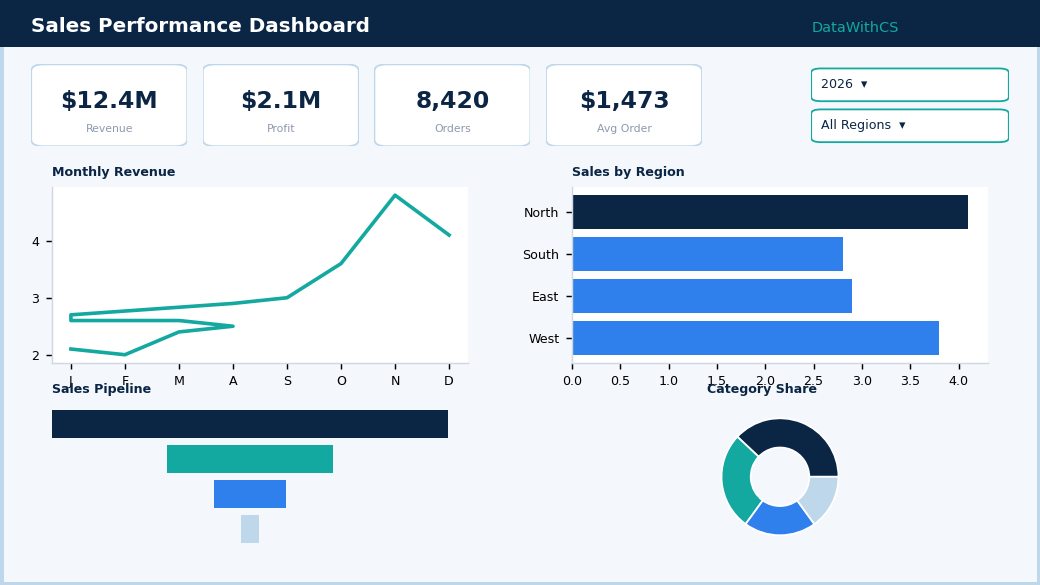
Cards for revenue, profit, and orders sit on top. A line chart shows monthly revenue, a clustered bar compares regions, a treemap shows category share, and a funnel tracks the pipeline. Year and region slicers filter everything.
HR Analytics Dashboard
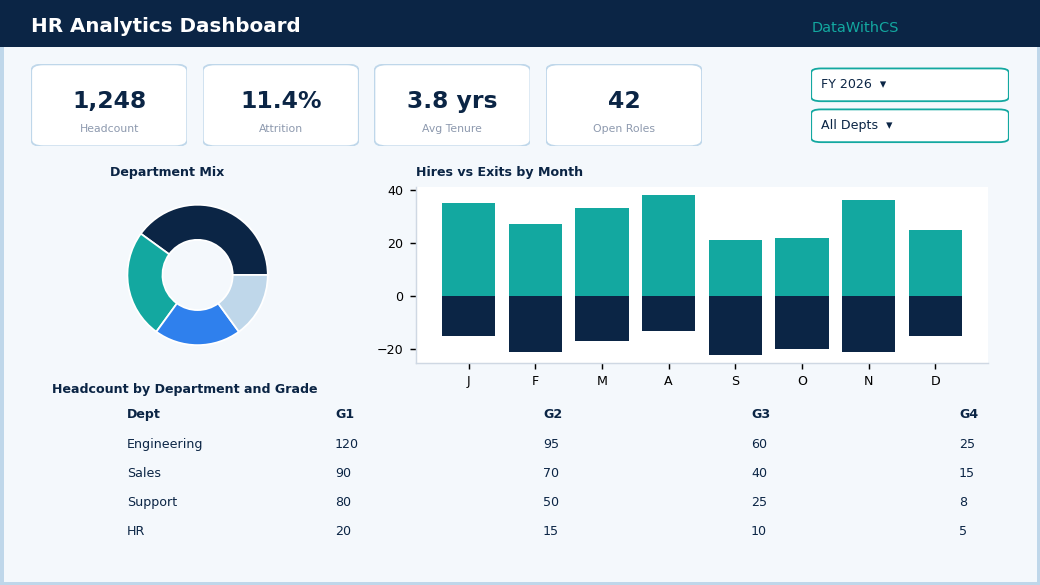
Cards show headcount and attrition rate. A donut shows department mix, a stacked column compares hires vs exits by month, and a matrix shows headcount by department and grade.
Financial Dashboard
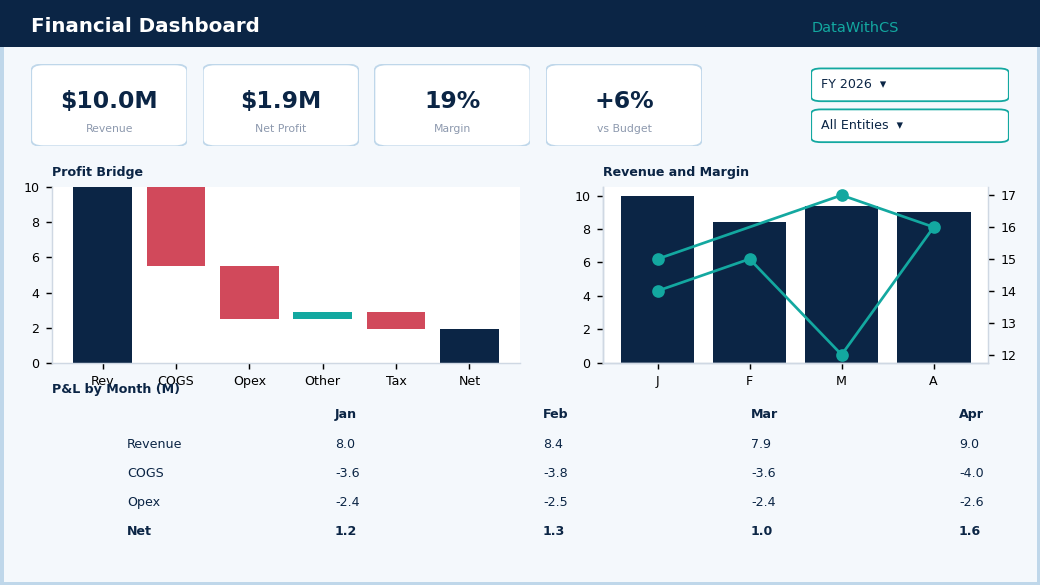
KPI visuals compare revenue and profit with budget. A waterfall explains the profit bridge, a combo chart shows revenue with margin, and a matrix presents the P&L by month.
Marketing Analytics Dashboard
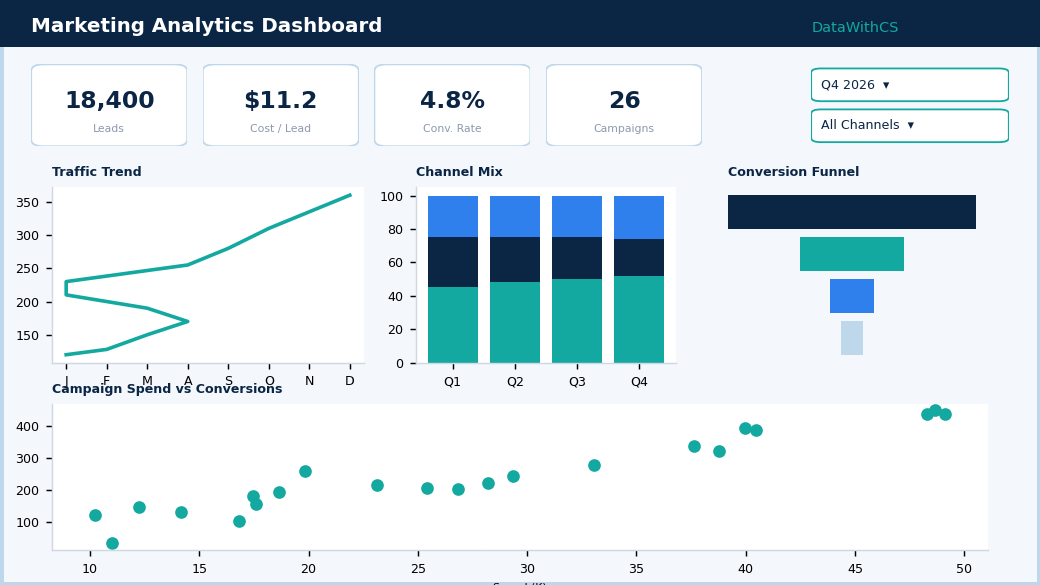
Cards show leads, cost per lead, and conversion rate. A line chart shows traffic trend, a 100% stacked column shows channel mix, a funnel shows conversion stages, and a scatter chart compares campaign spend with conversions.
Common Mistakes in Power BI Data Visualization
- Using the wrong chart type: pie charts for 12 categories, or lines for unordered categories.
- Too many charts on one page: aim for a clear story with about five to eight key visuals.
- Misleading scales: truncated bar axes and dual axes that exaggerate correlation.
- Too many colors: limit the palette and use color to highlight, not decorate.
- Ignoring business requirements: start with the question the stakeholder needs answered.
- Unnecessary information: remove visuals, labels, and effects that add no insight.
Frequently Asked Questions
What are the most important Power BI charts for data analysts? Bar and column charts, line charts, stacked charts, cards, matrix, and scatter charts cover most day-to-day reporting.
What are the best charts in Power BI for trends? A line chart is the standard; use an area chart when volume matters, and a combo chart when pairing a value with a rate.
How many Power BI chart types should a beginner learn? Start with eight core visuals, then expand to the 15 in this guide.
Are these visuals built into Power BI? Yes, all 15 are native visuals. Availability and exact naming can vary by version.
Conclusion
Mastering the right Power BI charts is what separates a cluttered report from a dashboard that drives decisions. Learn what each visual does, match it to the business question, and keep designs clean and honest. The fastest way to improve is to practice with real-world datasets: build each of these 15 charts, then combine them into sales, HR, finance, and marketing dashboards.